My very good friend Khurram always need to run windows programs spacially INPAGE urdu software as his business is Printing, Designing.
MAC is the favorite platform for Printing, Publishing and Designing in Karachi, and i belive all over the world... m m m may be :). Today I've found very interesting article on labnol.org that i'm rewriting spacially for Khurram Saeed. and will be benificial for all my visitors who uses Apple Mac:

Following is the contant copied from
Mac siteLeopard is the world’s most advanced operating system. So advanced, it even lets you run Windows if there’s a PC application you need to use. Just get a copy of Windows and start up Boot Camp,
now included with Leopard. Setup is simple and straightforward — just as you’d expect with a Mac.
Run Windows at native speed.
Boot Camp supports the most popular 32-bit releases of Windows XP and Windows Vista. When you use either operating system on your Mac, your Windows applications will run at native speed. Windows applications have full access to multiple processors and multiple cores, accelerated 3D graphics, and high-speed connections like USB, FireWire, Wi-Fi, and Gigabit Ethernet.
Ready, setup, go.
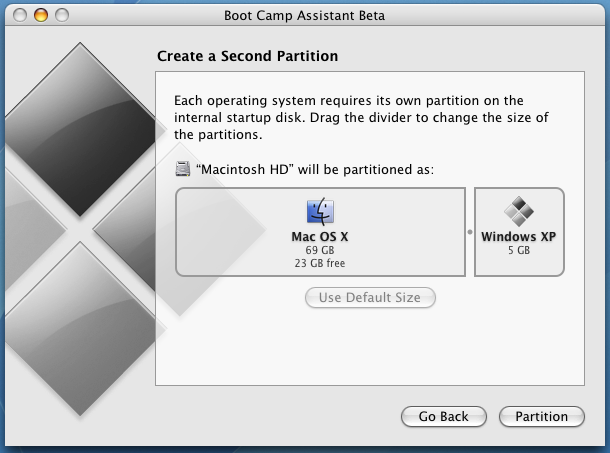
When you're ready for Windows, the Boot Camp Assistant sets up your hard drive for you. It leaves all your Mac data in place while it creates a separate partition on your drive for Windows, and then begins the installation process. Boot Camp includes a PDF setup guide, so you can refer to it as you go.
Drivers galore.
When you install Windows using Boot Camp, you won’t need to search the Internet for drivers or burn a disc. After you run Boot Camp, simply insert the Leopard DVD to install the necessary drivers. Everything you need to make your Mac work with Windows is right there. When you use a Windows application, you’ll have full access to unique Mac features (iSight, Apple Remote, trackpad, specific keyboard keys, keyboard backlighting) and connectivity (wired and wireless).
Choose your OS.
After you’ve installed Windows using Boot Camp, you can start up your Mac using either operating system. Simply hold down the Option key when you power up and choose one or the other.
Already running Boot Camp? Even easier.
If you’re already working with Boot Camp Beta, you’re practically finished before you start. All you need is some new drivers. To install them, simply start up your Mac in Windows and update the drivers from the Leopard DVD.
Parental Controls
You need a purchase a full licensed version of Windows XP / Vista to use it on a Mac with Fusion, Desktop or Boot Camp. While Parallels and Fusion all you to run Windows programs alongside other Mac programs, Boot Camp can run only one OS at the time - you need to restart Mac to switch to Windows. This is similar to installing Ubuntu Linux on a Windows Machine.